STEP 1.
We start with creating the pencil as a sprite. You can also find the pencil used above in the library.
We want the pencil to follow our mouse pointer. We haven't done this yet, but you will probably find the right block!
Do you combine this block with the correct other blocks?
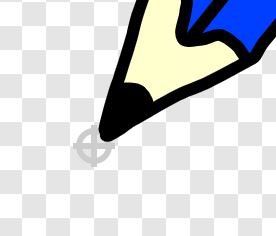
You will notice that the program does not work quite the way we want. We have to make sure that the point of the pencil goes to our mouse pointer. For this we need to change the center of the sprite.
You do this by clicking on the button "Center of appearance".
Now we want to draw with the pen! As long as you click your mouse, we want it to be drawn.
You can find all the cubes around the drawing in the group "Pen". To do this, you can first click on an "Extension".

After which you have the choice for the pen:

We will now need the following two blocks:
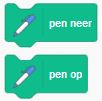
Try to write the program now!
STEP 2: a second color.
We now want to be able to switch between two colors, choose two yourself! You will need to do the following:
Create two sprites, be sure to choose your own colors! You can click on this to change color. We made 'Blue' and 'Green'.
Allow the pencil to change color. So you will have to create different costumes.
Changing the pen color, are you looking for the right block for this?
STEP 3: erase.
It is now quite annoying that your attempts remain. You can also clear the screen.
Do you provide a sprite that can clear the screen? It can also be useful to clear the screen when you start the program.
Now we can only wipe the entire screen. We also want to be able to erase a small part of a drawing. Do you provide an eraser?
STEP 4: Pen width.
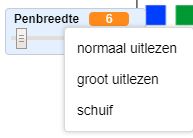
Now we want to be able to determine the thickness of our pen. For this you will have to create a variable.
Do you look for how to change the thickness of the pen yourself?
We want to determine the thickness using a slider. You can do this by right-clicking on the display of your variable. Then click on 'Slide'.
STEP 5.
We now want to make our program completely perfect!
You may have noticed that you can also draw with the colors and eraser on the sprites. This doesn't look very nice. We want you to be able to draw only under our sprites.
So you will have to adjust the condition for your "if ... then ... else ..." block that you made in step 1. We want to add an extra condition. This can be done with the "and" block:


(a) Can you add some extra colors? To make it easier for yourself, you can copy an existing sprite.
(b) Can you insert some keyboard shortcuts? For example, you could clear the screen when you press the 'w' key.
(c) You may have already seen the "pen brightness" box. With this you can make your color darker and lighter. Are you creating a new slider that uses this?