STEP 1: draw
We start with creating the background and the sprites. Of course you can do your own thing! You don't have to choose a frog as a goalkeeper.
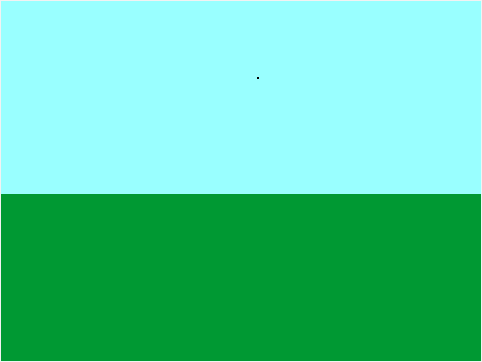
We created the following backgrounds: (You don't have to copy these, make your own!)
- The playing field with, for example, grass and air.
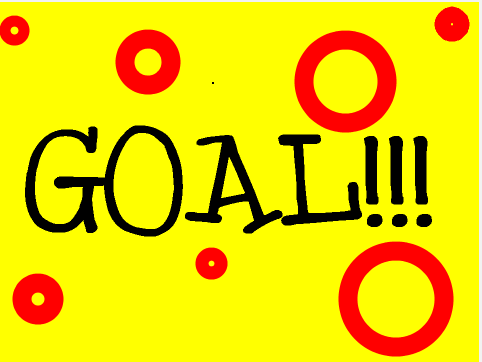
- A background that appears when a goal is scored.
We also need the following sprites:
- A goalkeeper
- A goal: make sure that the posts of the goal are drawn in a different color. We will need this later.
- A ball
STEP 2: Move the ball
We immediately program the movement of our ball.
First try to get the ball to follow your mouse. We want to keep the ball at the same height, as in the game 'Pong'.
As soon as the space bar is pressed, the ball must be fired upwards towards the goal. For now we will not aim the ball, it always goes straight up.
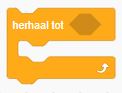
As soon as the spacebar is pressed, your previous loop must be stopped. The mouse should stop moving the ball. You can do this in several ways.
- This is one possibility
 .
.
- A second option is to send a signal.
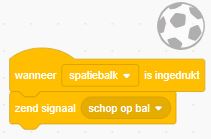 This will sometimes be a bit easier, especially if other sprites have to respond as well. Of course we want the loop above, where the mouse moves the ball, to be stopped first. You can do this with the block:
 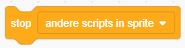 .
.
Now we want to stop the ball as soon as it hits the goal, the keeper or the edge. Then we return to the starting position.

We need an extra block for this:

This block does not do what you think it does! It checks whether one of the two blocks applies inside. You can also combine these blocks and insert an extra "or" block inside.
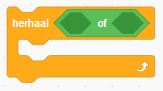
If we put the "or" block in a "repeat until ..." block, the loop is repeated until at least one of the two blocks counts.
STEP 3. Goal of miss?
We now want to decide whether a goal has been made.
If the goalkeeper is hit, there is also no goal. You can also have the keeper say 'ouch'.
If the post is hit, there is no goal and the ball returns.
When a goal is scored, the background must be changed, and all figures must disappear. After this, the figures must of course reappear.
Do you know how to do all this?
After the first attempt, you should of course be able to try again. You can do this by sending a signal.
STEP 5. Keep score
Do you make sure that a score is kept?

If you are very strict, you can deduct a point if you miss ... Or you only give the player 10 chances and then show how many hits.
STEP 6. Improve your game!
Now the game is already working ... We just want to make it a bit better and more beautiful. Below are some ideas:
Make the keeper stop for a moment when a goal has been scored.
After a goal, let the ball continue until it hits the post.
Add a nice sound when the post is hit, or when there is a goal.
Show a different background if you miss.
STEP 7. Add the direction
Are you up for a challenge? Now we still want to be able to change the direction of hitting the ball.
For this we add an extra sprite: the arrow.
Do you make the arrow move together with the ball? You can copy a piece of code from the ball for this.
If we press the arrows, we want the arrow and the ball to turn more to the left or right. The code for this is not that difficult.
You will soon notice that the arrow does not turn completely the way you want: the arrow turns around the middle. We want the bottom of the arrow to stay in the same place. You can change the pivot point of your sprite! You do this by clicking the "Center of appearance" button under 'Looks'. We already did this in the "Draw in Scratch" exercise.
Do you code that the arrow disappears when you kick the ball?